
If you need to manually enter an order, the MIS offers this option. If you have several orders, it would be more efficient to use our transfer batch feature or XML method.
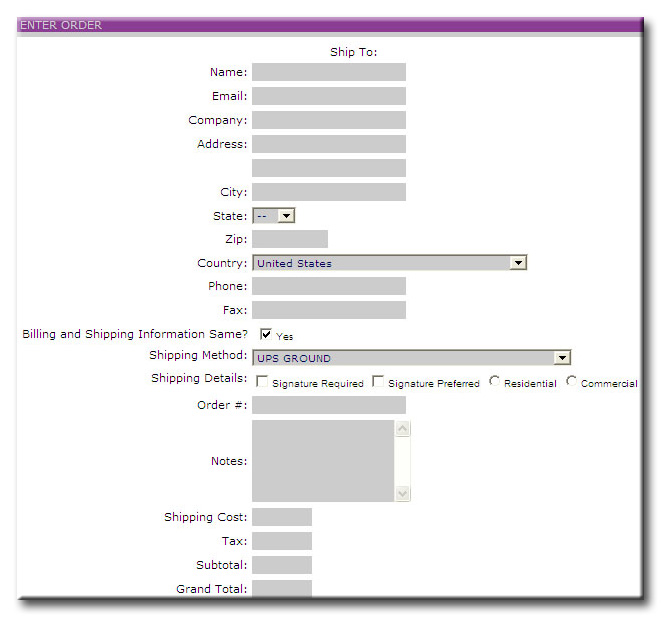
Entering an order is similar to using an online shopping cart. The Merchant will first fill out the customers information
and then select the products for the order.
Filling Out the Enter Order Form
The order form is divided into 2 parts. The top section is the customer
billing/shipping information. The bottom section is for adding the products
to the order.
To begin filling out the form:
Note: To receive confirmation/tracking number emails, you must have an email address present in your order details. If the address is not present you or your customer will not receive the notification emails. Accessing this information would be possible through each of the order details in the MIS.
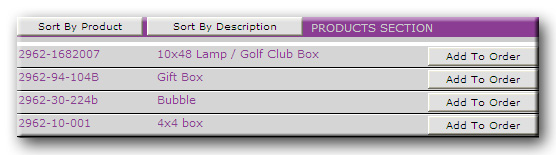
Selecting Products for Shipment
Select the product and enter a quantity. As with all of the product listings in the MIS, sorting is allowed by clicking
the associated product or description sort buttons.
By clicking the Add to Order button of the associated product, it will add that product to the order. When the add button is pressed, the item is added to the order and is then available to change the quantity at the bottom. Each click of the Add button for that item will increment the quantity by one. Many prefer to run down the list of products adding each one, changing the quantities last. After each item is added, the bottom portion is updated to reflect the items selected.
Update Product Quantities
Change item quantities by clicking the Change Quantity button. You
will then be presented with a text box that you can enter the updated quantity
for that item.
Submitting the Order
With all of the form items filled in, the products and quantities
updated, click the Complete Order button.
When the order is submitted, the order is sent to our warehouse where it is picked, packed, and shipped. In most cases, if the order arrives before 3:00 PM EST, it will be shipped the same business day.
A confirmation email will be sent to you and your customer notifying you of the shipment.
Note: For batch orders, duplicate order numbers will not be accepted into the system. Duplicate order numbers can be used in the Enter Order feature. All orders are assigned a WeFulfillIT order number for internal reference.